



Godot gets blamed a lot for ugly 3D. Someone posts a game that looks flat, and the replies say the engine can't do any better. I wanted to test that. So I built a small village from free models, and then I changed only the light, the sky, the air and a few shaders. I didn't swap, move or add a single building.
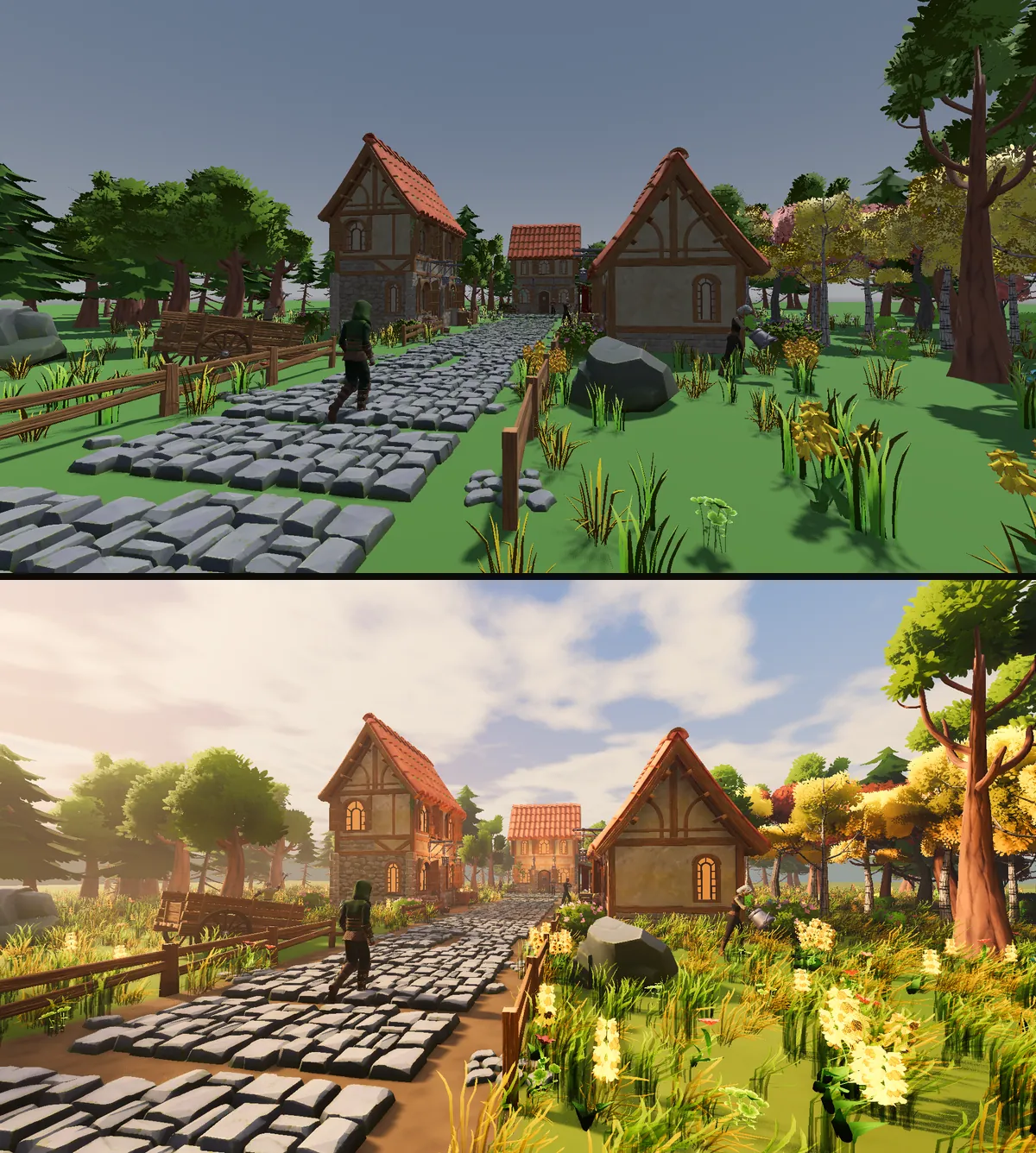
The whole village is free to download. Both scenes are in it, and every change in this post is a key you can press while the game runs.

The 3D village project
The default village and the finished one, with all twelve changes wired to keys. Press K to turn everything off, then press L to add the changes back one at a time.
Godot 4.7 · Forward+ · 232 MB · .zip
Why a default Godot 3D scene looks flat
The starting scene uses exactly what Godot adds when you click Add Sun to Scene and Add Environment to Scene in the 3D view's preview menu. Those settings are great for placing things while you build. They were never meant to be the final look.
Three things give it away:
- The sun is 60 degrees up. That's roughly midday. Light from that high hits the front of a house and the side of a house about the same, so nothing looks solid.
- The sky is a plain grey-blue gradient. The sky lights your shadows, so plain grey sky means plain grey shadows.
- The tonemapper is set to Linear. The tonemapper is the setting that turns the engine's light values into the colours on your screen. Linear cuts off anything that's too bright.
Think of a film set before the cameras roll. The work lights are on so the crew can see what they're building. Nobody shoots a scene under them. Godot's preview sun and sky are work lights.
Every change below is a switch in the project. With all twelve switches off, the finished scene renders the same frame as the default scene. That's how you know the models really are the same the whole way through.
1. Move the sun
The first switch lowers the sun to about 30 degrees, brings it in from the side of the village, and makes it warm, like late afternoon. In the project that's a light_color of (1.0, 0.86, 0.7) and a light_energy of 2.6 on the DirectionalLight3D.
Now each house has a lit side and a dark side, so you can see its shape. Long shadows stretch across the lane and show where everything is standing.
It also gives the sun a size with light_angular_distance, which is how wide the sun is in the sky. A wider sun makes shadows that are sharp where they touch an object and softer as they stretch away, the way real shadows behave.
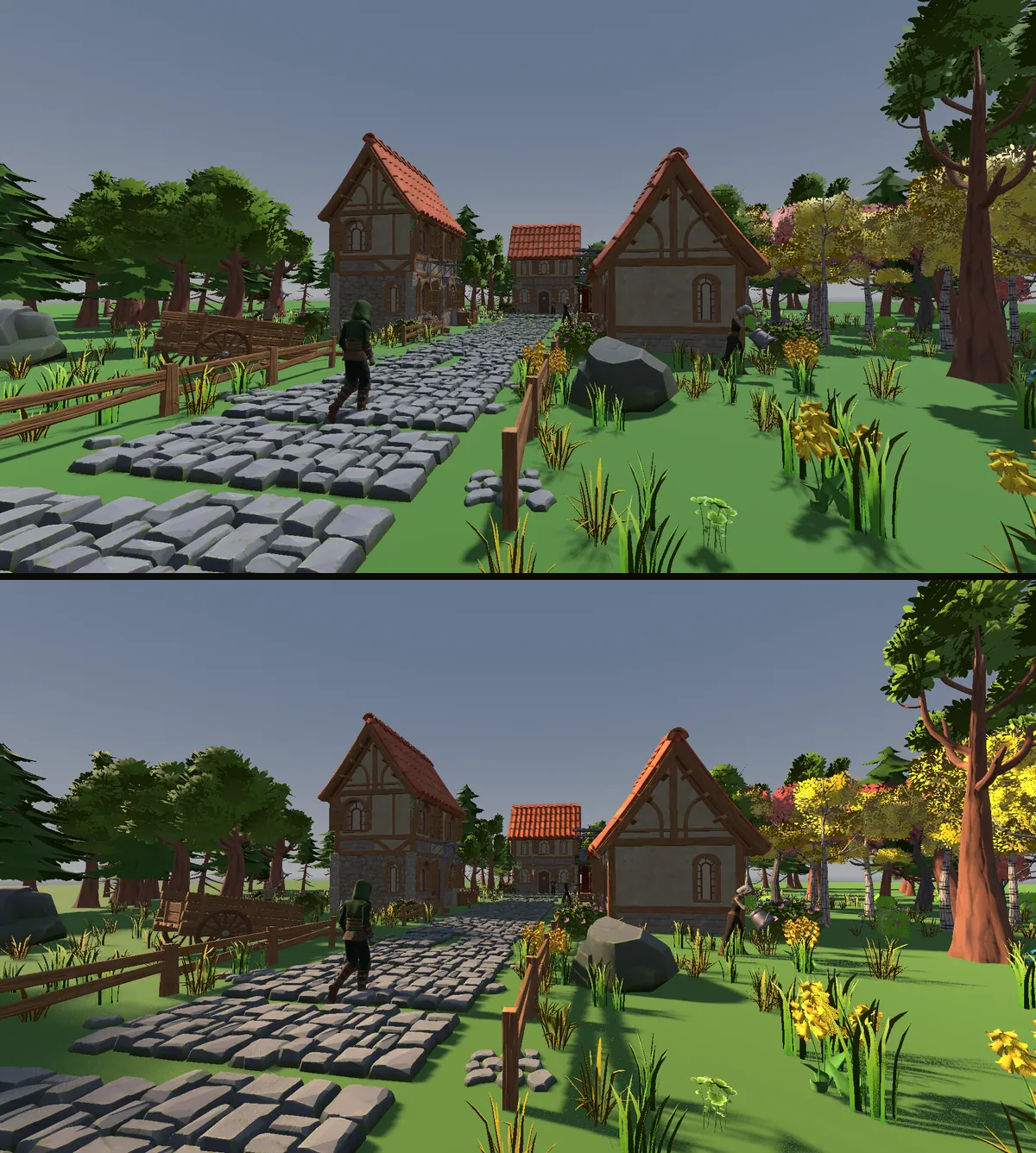
But on its own, this looks harsher. The shadow side of every house went almost black, and the sky is still grey. That's the next switch.
2. Let the sky light the shadows
Outside, a shadow isn't black, because the whole sky is still shining into it. Godot already lights shadows with the sky. Our sky was just the plain preview gradient.
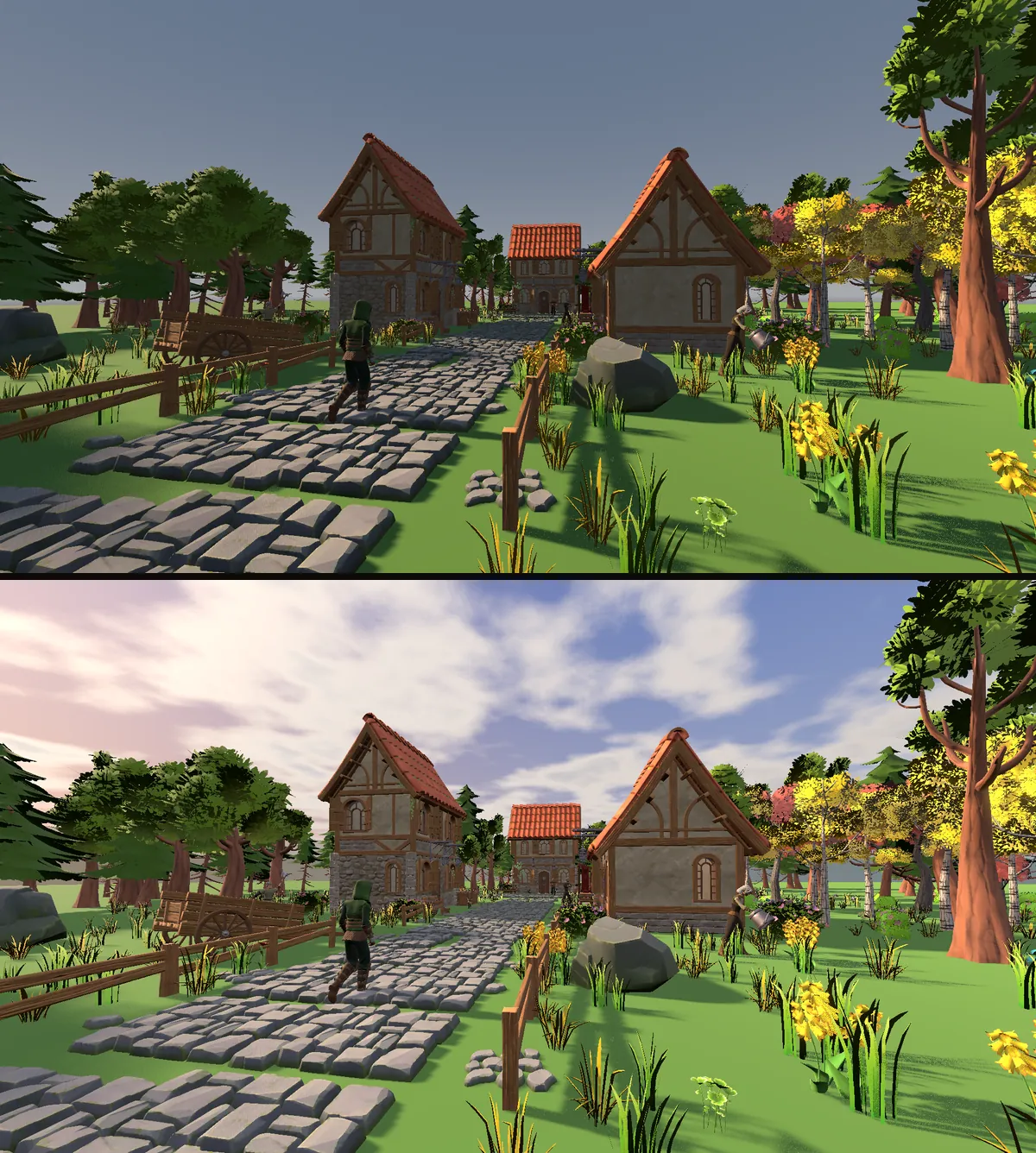
So the second switch replaces it with a sky shader. A shader is a small program the graphics card runs to work out the colour of each pixel. This one draws a blue sky overhead, a warm glow on the horizon near the sun, drifting clouds and a line of distant hills. In the Environment, Ambient Light > Source is set to Sky, with an energy of 0.6.
Look at the shadow side of the houses now. It picks up a cool blue from the sky, while the sunlit side stays warm. Warm light next to cool shadow is a big part of what makes a scene read as outdoors in the afternoon.
3. Switch the tonemapper to AgX
The engine works out light values that can go far past what a screen can show. Something has to squeeze them down, and that's the tonemapper's job. With Linear, anything too bright gets clipped, so a sunlit roof turns into one loud, flat orange.
AgX is one of the tonemappers built into Godot 4. It rolls the brightest colours off gently instead of cutting them, so the roof keeps its shading. I paired it with an exposure of 1.12 and an AgX contrast of 1.32. A small screen shader also adds a colour grade: shadows lean slightly blue and bright areas lean slightly orange. So this switch is a bundle, not only a different tonemapper.
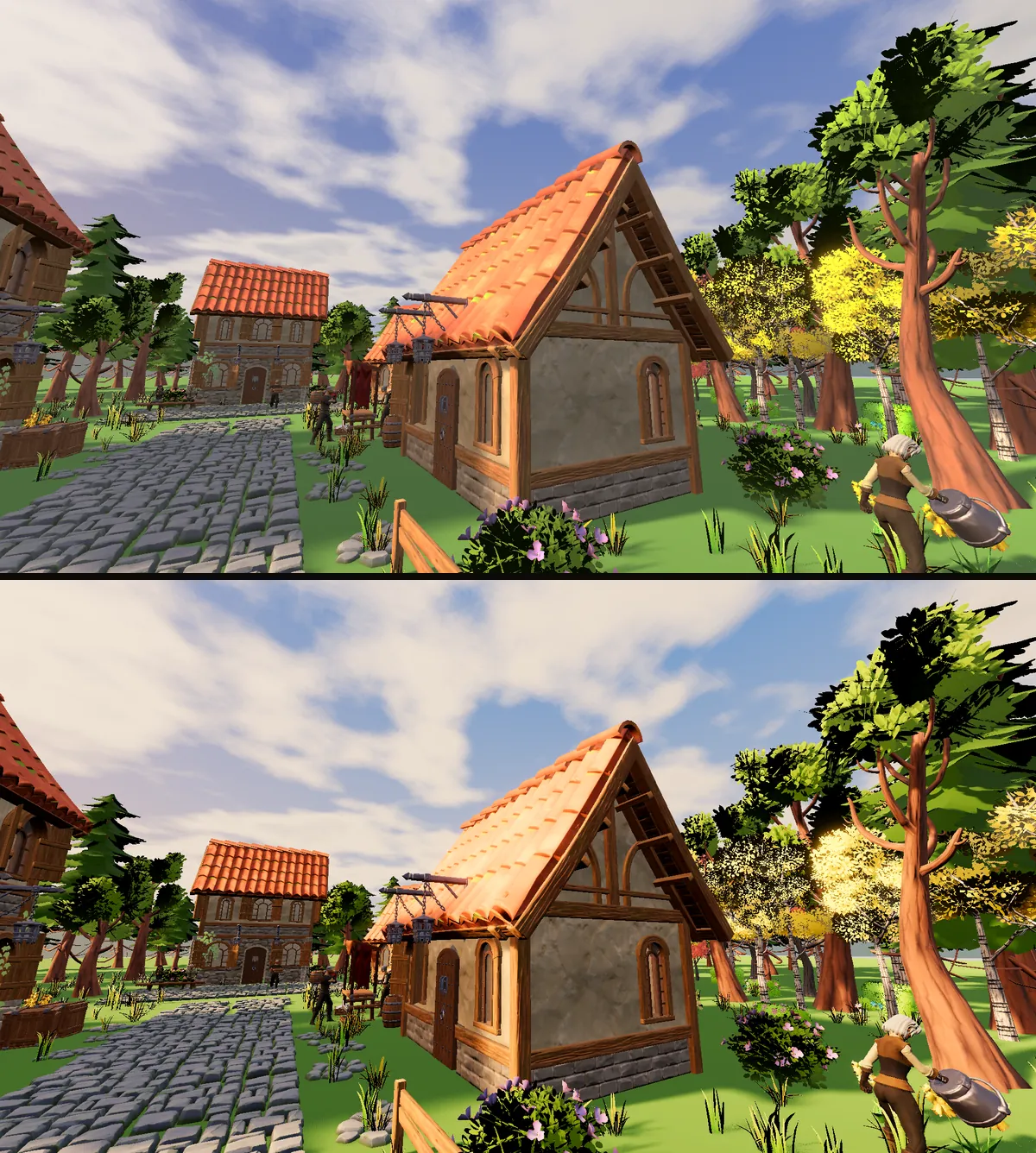
If you only change three things in your own game, change these three. Every other switch builds on the light that the sun, the sky and the tonemapper set up.
4. Ground things with ambient occlusion
The light was working, but the barrels by the door and the stones in the lane still looked like they'd been set down on top of the ground, not resting in it.
In real life, corners where two surfaces meet get less light, because they block some of each other's light. That's called ambient occlusion. Godot's version works from what's on screen, so it's called SSAO (screen space ambient occlusion). This switch turns it on along with SSIL, which adds a little of the colour that bounces between surfaces close together.
The gaps between the stones and the bases of the barrels get darker, and things start to sit in the world.
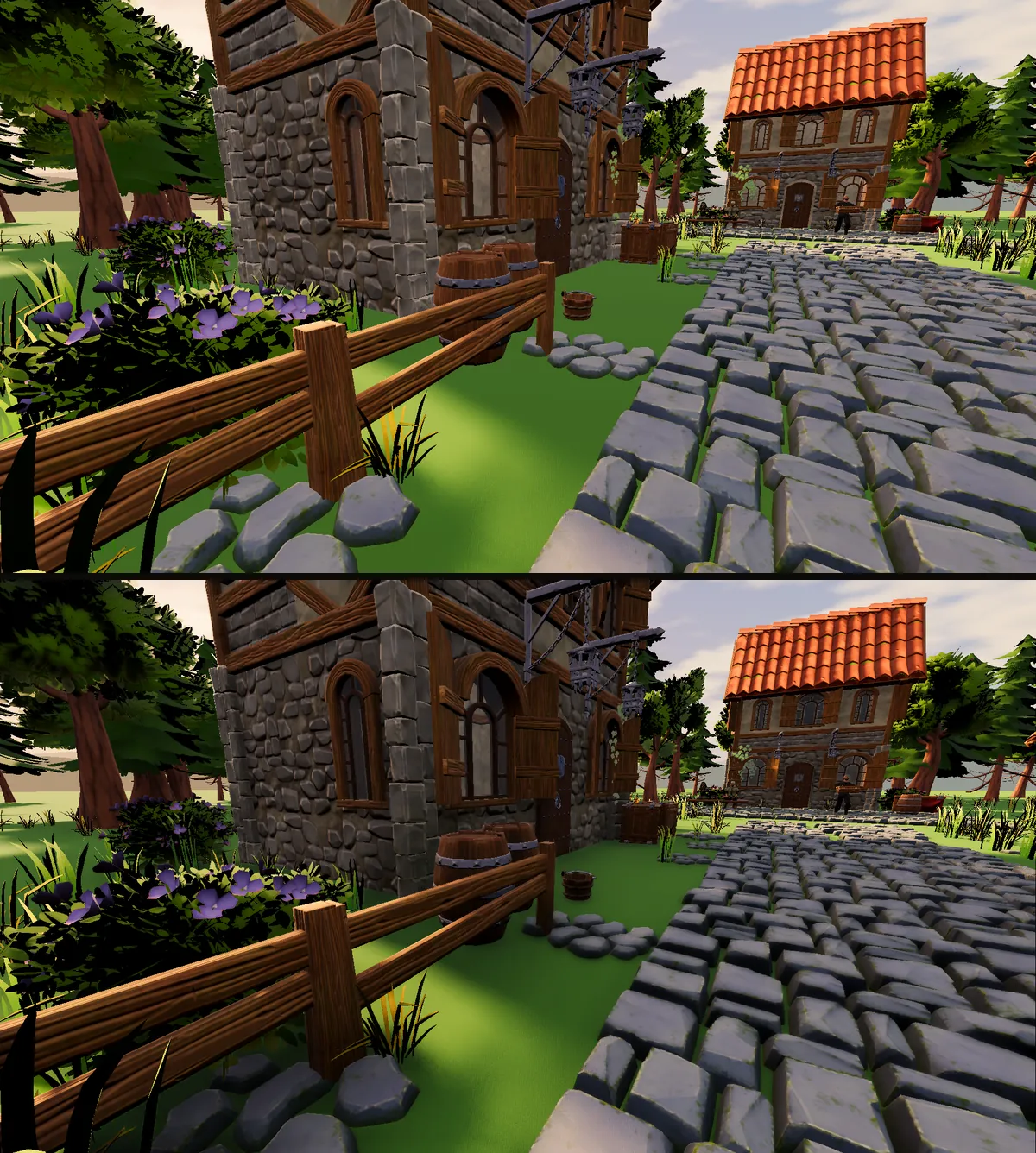
One catch. Both effects only know what the camera can see right now, so the shading can shift as the camera moves. Don't judge them from one screenshot. Walk around.
5. Let light bounce with SDFGI
Light doesn't stop when it hits something. Sunlight lands on the grass, and some of it bounces onto the walls nearby. Global illumination is the name for light that bounces, and SDFGI is Godot's built-in way to work it out around the camera.
With it on, the shaded wall beside the grass picks up a little green, and the houses stop looking like each one is lit on its own. It's a subtle change. Watch your material colours here: a very saturated green ground will tint every wall around it.
6. Add some air, but keep the road readable
The next problem was the distance. The trees at the back of the village were just as dark and sharp as the fence in front of the camera, so the whole village looked like a model on a table.
Outside, the air between you and something far away scatters light. Far things get lighter, lower in contrast and closer to the colour of the sky. This switch adds three things:
- a thin distance fog with aerial perspective, so distant objects fade toward the sky's colour
- a layer of mist that stays low over the ground
- a little volumetric fog, which is fog that actually catches the sunlight
Now the back of the village sits behind some haze, and the scene has depth without moving a single model.
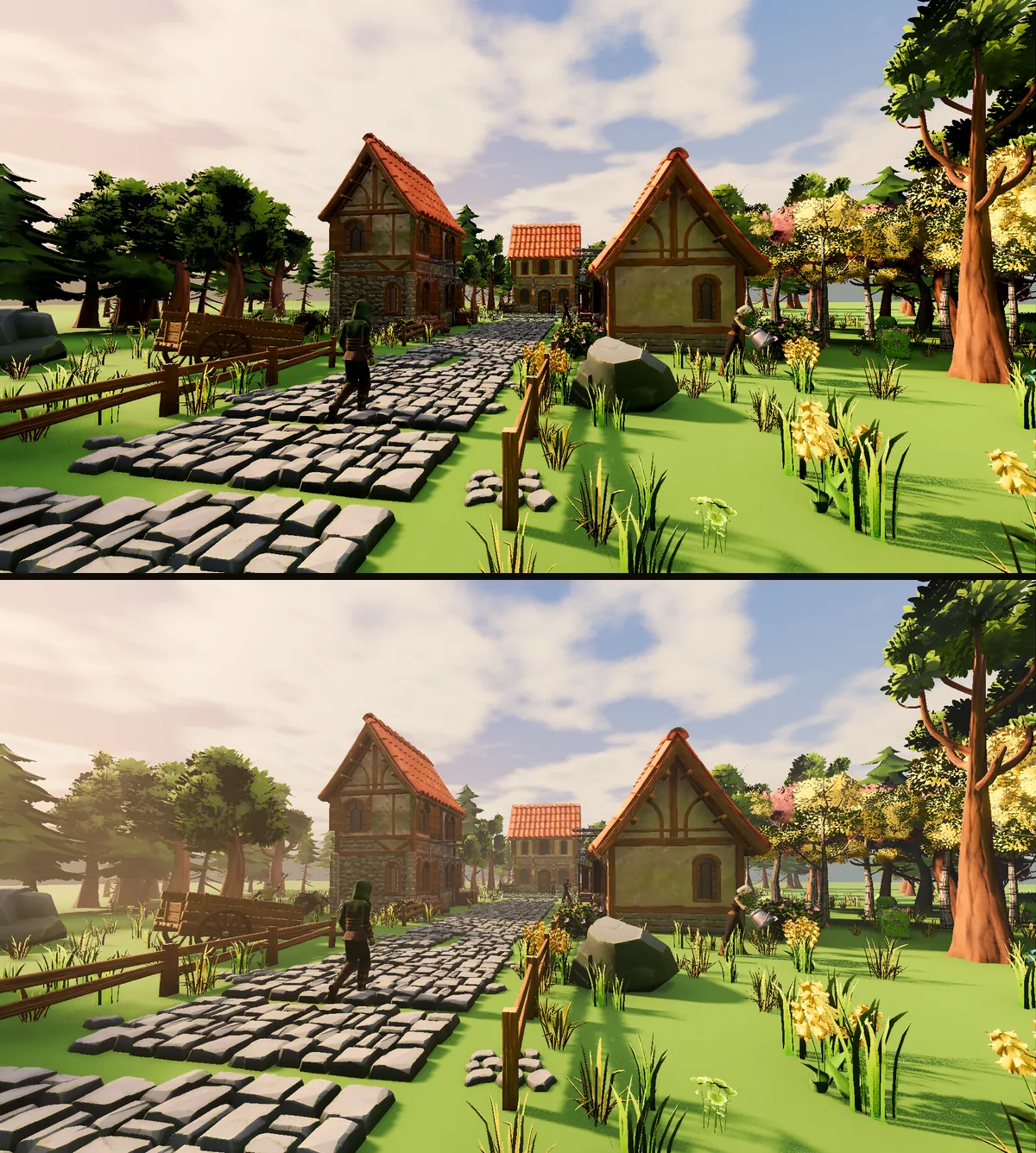
It's easy to overdo this. My first ground mist was five times thicker. It looked moody, but it hid the road, and if the player can't see where to go, the look is making the game worse. Turn fog down until everything the player needs is still easy to read.
7. Make each tree shade as one shape
Up close, every tree is a trunk with hundreds of flat cards on it, and each card has leaves painted on. Every card faces a different way, so in sunlight each one gets its own brightness and the tree comes out spotty.
The foliage shader fixes this with the normals. A normal is the direction a surface says it's facing, and lighting uses it to decide how bright that surface should be. The shader tells every leaf card to face outward from the middle of the tree:
vec3 from_c = VERTEX - canopy_center;
vec3 sn = normalize(from_c + vec3(0.0, 0.25 * canopy_radius, 0.0));
vec3 n = normalize(mix(NORMAL, sn, normal_soften));
The project's look.gd works out canopy_center and canopy_radius for each tree from the size of its leaves. normal_soften is 0.85, so each card keeps a little of its own direction.
Now the tree shades like one soft ball of leaves: bright on the sunny side, darker underneath.
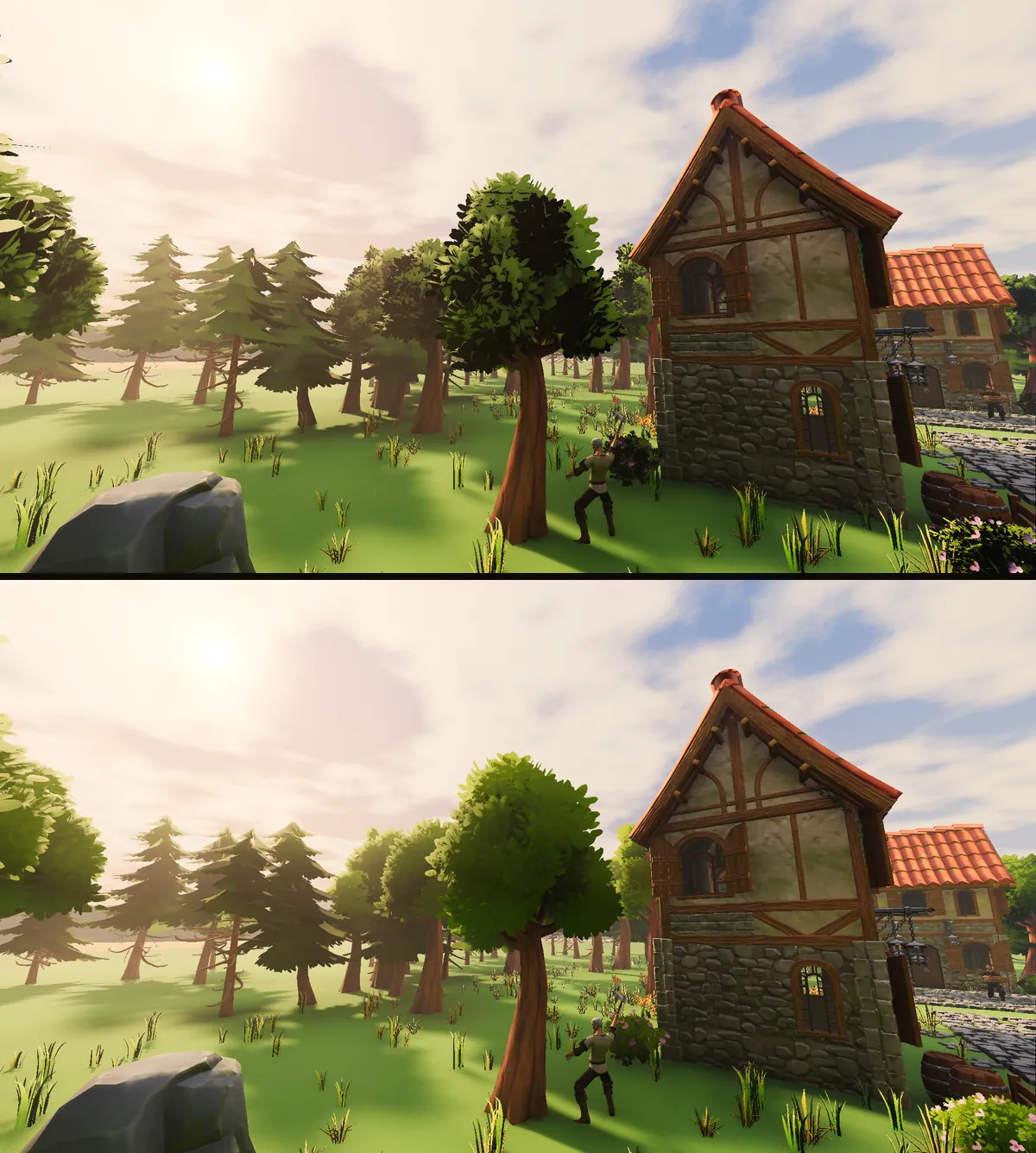
The same shader moves the leaves too. The whole tree sways a bit more toward the top, each card flutters on its own, and some sunlight comes through the leaves from behind, so the edges of the tree glow a little.
8. Grass that bends instead of sliding
If you move every part of a grass clump by the same amount, the whole clump slides around. That looks terrible. What you want is roots that stay planted and tips that bend.
The grass models already have the answer painted into them. Their vertex colour, a colour stored on each point of the model, goes from black at the root to white at the tip. The default material ignores it. The grass shader reads it into a value called bend, and squares it, so the roots barely move and the tips move most:
float gust = texture(noise_tex, wpos.xz * 0.025 - TIME * 0.06 * wd).r;
float sway = sin(TIME * wind_speed + dot(wpos.xz, vec2(0.55, 0.35))) * 0.5 + 0.5;
vec3 offs = vec3(wd.x, -0.15, wd.y) * (sway * 0.5 + gust * 1.2) * wind_strength * bend * bend;
gust comes from a noise texture, which is just a cloudy black and white image, sliding across the field in world space. Clumps next to each other sample nearby parts of that image, so a gust rolls over them together instead of every clump moving on its own beat. The same root-to-tip value also makes the roots darker than the tips.
This switch also gives the ground its own shader. It mixes two greens using noise, adds worn dirt along the lane, the square and the doorways, and darkens the ground under the trees. The dirt comes from a mask image painted from the village layout, so it always follows the paths.
9. Fill the field with MultiMesh
The village had about a thousand grass clumps, and you could see bare ground between all of them. This switch is the first one that adds something instead of changing a setting: 22,000 more copies of the same grass and flower models.
Adding 22,000 nodes to the scene tree would be slow. Instead the project uses MultiMesh, which lets Godot draw thousands of copies of one mesh in one go. The copies are split into chunks, they don't cast shadows, and their visibility_range_end is 65 meters, because nobody misses one blade of grass that far away.
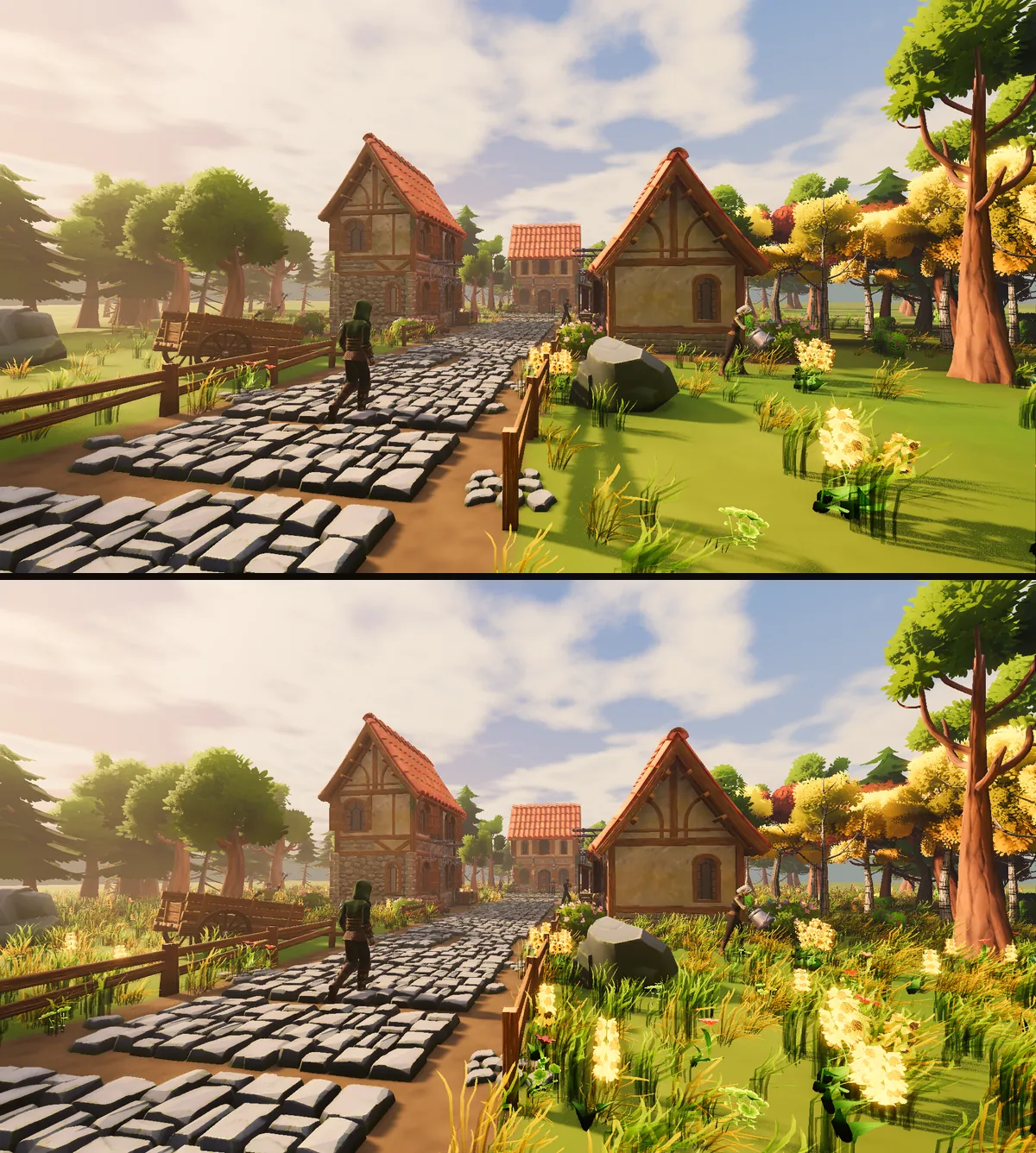
Keep the paths clear, though. More grass looks richer, but the lane still has to read as a lane.
10 to 12. Lights, lens and polish
The last three switches are finishing touches.
- Practical lights. In film, a practical light is a light where you can see what's giving it off. The lanterns get real lights, the windows glow, and a soft fill light reaches only the player character (it sits on its own render layer), so the ranger never gets lost in the shade.
- Lens. The camera's field of view drops from Godot's default of 75 degrees to 55, and the camera backs off to keep the ranger the same size. The houses behind look bigger and closer, and a little depth of field blurs the far distance. This one changes how much of the world the player can see, so it isn't automatically better for gameplay. I left it out of the final comparison for that reason.
- Polish. MSAA 2x plus TAA to smooth the jagged edges on roofs and fences, debanding, a soft darkening around the edges of the frame called a vignette, a little film grain, and some dust floating in the air.
What all this costs
The first time I had all twelve switches on, the village ran at 46 to 50 frames per second at 1920x1080 on an RTX 5080. That's a very fast graphics card, so something was expensive.
I turned the switches off one at a time and watched the frame rate. The biggest cost wasn't the fog or the grass. It was the sun, or more exactly, its shadow settings.
You don't have to give up the warm, low sun to fix that. The direction and colour of the light cost nothing. The quality of its shadows is what costs. Here's what changed between that first version and the one in the download:
| Setting | First version | In the download |
|---|---|---|
| Directional shadow map size | 8192 | 4096 |
| Soft shadow filter quality | High | Medium |
| Sun angular distance | 1.6 | 1.1 |
| Sun shadow max distance | 70 m | 60 m |
| MSAA | 4x | 2x |
| Extra grass copies | 26,000, seen to 75 m | 22,000, seen to 65 m |
A shadow map is the image the engine draws shadows into, and you'll find its size in Project Settings > Rendering > Lights and Shadows. With those changes the village hit 75 frames per second, which was the cap of the monitor I tested on, so the real number is at least that. The picture barely changed.
So when your game gets slow, do the same thing. Turn each change off on its own and watch the frame time. That tells you what each part of the look actually costs, and you can often keep the look and lower one quality setting.
If you want to feel the difference, the download includes both setups. Run the project with -- --perf=early on the command line to get the first version.
The final test: take the sun away
At the end of the video, I turned off only the sun switch in the finished village. The grass, the fog, the shaders and the lanterns all stayed on.
It still looked flat. None of the later effects could replace the direction and contrast that first lighting change gave the buildings. That's the lesson of the whole experiment: each effect solves one specific problem, and none of them stands in for the others. Start with the light.
Try it on your own scene
- Start with the sun. Lower it, bring it in from the side, and give it some colour.
- Check what your sky puts into the shadows. A plain grey sky means plain grey shadows.
- Switch the tonemapper from Linear to AgX, then adjust the exposure.
- Look for what's actually missing. Contact shadows, depth, movement? Add an effect only when you know which problem it solves.
- Copy the switches, not my numbers. These values suit a warm afternoon village. A horror game would use the same switches with a darker sky, much less ambient light and a lot more fog.
The fastest way to learn this is to flip the switches yourself and watch each one change the picture.
Get the village and flip the switches
Both scenes from this post, with every value in one script (look.gd) so you can change a number and compare.
Godot 4.7 · Forward+ · 232 MB · .zip
FAQ
Why does my Godot 3D game look flat?
Usually because it still uses the preview sun and environment. A high sun lights every wall about the same, a plain grey sky gives the shadows plain grey light, and the Linear tonemapper clips bright colours. Lower and warm the sun, light the scene with a real sky, and switch the tonemapper to AgX. Those three changes do most of the work.
Which tonemapper should I use in Godot 4?
For most 3D games, AgX or Filmic rather than Linear. Linear clips anything brighter than the screen can show, so bright surfaces go flat. AgX rolls the highlights off gently. You'll find it in your WorldEnvironment's Environment under Tonemap > Mode. Adjust the exposure after you switch.
Can Godot make good-looking 3D games?
Yes. Every change in this village uses features already in Godot 4: the DirectionalLight3D settings, a sky shader, AgX tonemapping, SSAO, SDFGI, fog, MultiMesh and a few custom shaders. No models were swapped. What makes the difference is choosing the lighting yourself instead of keeping the preview defaults.